







Showing posts with label mac. Show all posts

Saturday, September 27, 2008

Sunday, June 29, 2008

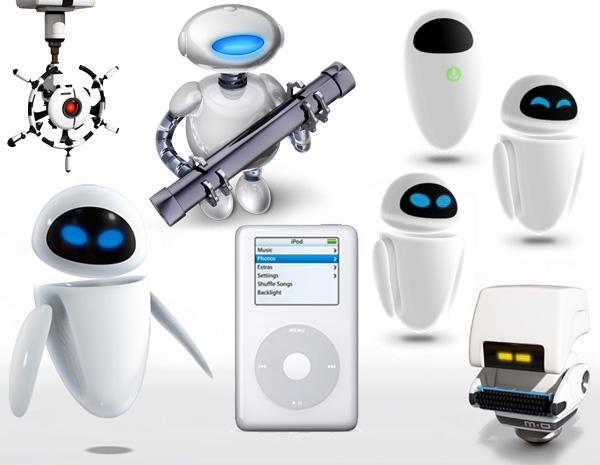
Wall-E: Descendant of iPod

The talk of the town these days is Wall-E, the more than adorable creation of Pixar. And why does it look familiar? Look at this post and you'll understand - from NOTCOT

Also there's a nice set of Adium icons here.


wall-e.jpg


Saturday, June 28, 2008

iPhone WILL be BIG in China

iPhone will (hopefully) come into the Chinese market with China Unicom in August. But do you know how many iPhones are ALREADY in use in China? 400,000! And that is just the lower end of the number. A $400 iPhone could easily be sold in China at a price tag of $600. And the Chinese consumers' craze for posh is never-ending. A picture says all:

Looks like the iPhone will make it to mainland China, after all


Wednesday, January 16, 2008

Macbook Air

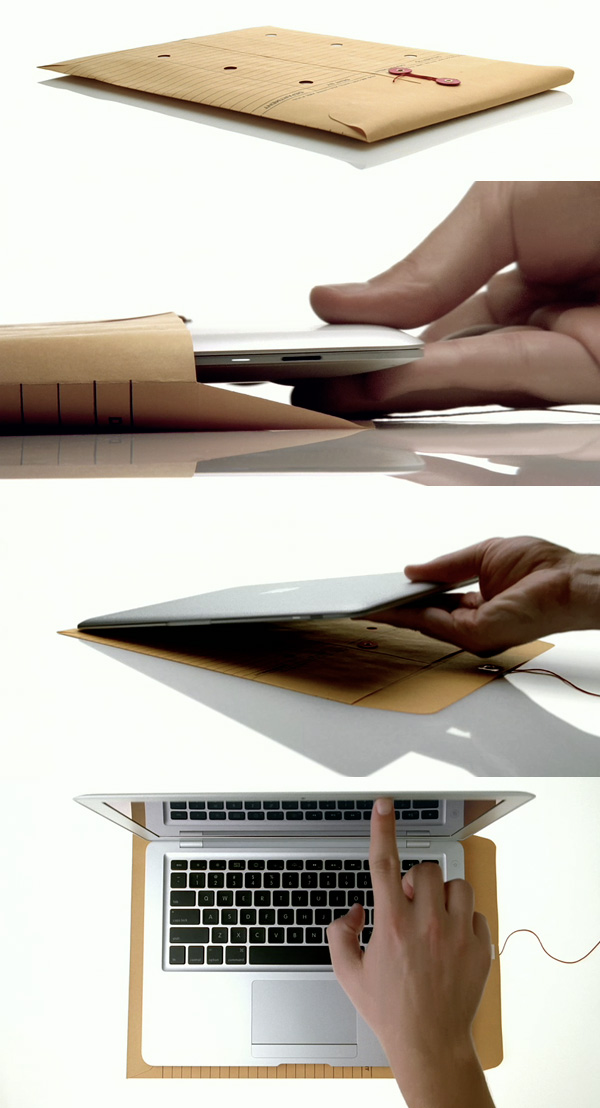
No use fighting it, Macbook Air is the gadget EVERYONE wants. 13.3-inch display, only 0.16 to 0.76 inch thickness. This is art! I want to declare Air as the sexiest gadget of the the year, but who would know what Apple is gonna come up with next. It's just amazing how Apple is able to make technology into works of art, and consequently, make these nerds into artists. I'm going to the Apple Store tomorrow...

macbookair3.jpg


Friday, October 12, 2007

Geek Manifesto

Insanely Great Tees is a T-shirt design devoted to promote Geek (or rather Apple) culture. Yes, they even have a T-shirt "Steve Jobs for President".

They claim to be good scientists from Zap Labs, in New York City: Josh, Dave and Paul. With the slogan:

 Made by Geeks, for Geeks (Be proud of your geekish heritage! You'll look so great, even your enemies will be impressed)


Thursday, May 31, 2007

The Four Levels of iPod Interaction

from The Urban Etiquette HandbookWhom you do and don’t have to unplug for.

LEVEL ONE
Continue at full blast. Consider increasing the vigor of your head-nodding and/or humming.
• Guys passing out bargain-electronics-store flyers.
• Idealistic-looking whippersnappers holding clipboards.
• Scientologists.

LEVEL ONE AND A HALF
Subtly turn down volume.
• People in the elevator you don’t know.
• Someone attractive who sits down next to you on the train while you are listening to the Goo Goo Dolls.

LEVEL TWO
Make a big show of pressing PAUSE.
• Anyone who approaches you while you’re working out.
• Non-panhandlers on the subway (may be helpfully pointing out that your bag is open, may be distracting you in a Gangs of New York–style pickpocket ruse).
• Co-workers you hate.
• Friends.
• Your parents, if you’re a teenager.

LEVEL THREE
Remove headphones, toss them jauntily over shoulder.
• People in the elevator you know.
• Anyone taking your money or instructions about how to prepare your food.
• Co-workers you don’t hate.
• Your parents, if you’re an adult.
• Police officers.

LEVEL FOUR
Completely remove and enclose in nearest pocket/bag/ purse.
• Co-workers who could have you fired in less than an hour.
• Anyone who’s crying.
• Police officers standing next to someone who’s pointing at you and saying, “That’s him!”

Saturday, March 24, 2007

Best of MacOSX Hints

This is a summary of the presentation done by Rob Griffiths at the MacworldEncore Conference & Expo entitled "The Best of Mac OS X Hints - Tiger Edition." This is for everyone who wants the hints without the 98M download of the hour-long presentation.

#1: Get TinkerTool

It has a whole mess of useful tweaks in it and it's free. Just get it, you won't be sorry:
http://www.bresink.com/osx/TinkerTool.html

#2: Use Go -> Go to Folder to jump to Finder folders

Shift-Command-G for quicker access, use Tab for auto-complete of folder names. Works in Open/Save dialogs but is case-sensitive there for some reason.

#3: Remap shortcut keys

Go to System Preferences > Keyboard & Mouse and click the tab called "Keyboard Shortcuts." You have to use the exact name of the menu command you want to change. It's pretty simple, you'll figure it out from there.

You can also add commands that Apple left out (like Secure empty trash in Finder).

#4: App switching tricks

(more after the jump)

Command- ` will cycle backward, scroll wheel, arrow keys, mouse to pick an app. H will hide the highlighted app, Q will quit it. Home/End will jump to start/end of list. Command-Tab works in Expose mode.

#5: Dictionary tricks

Control-Command-D will give a dictionary popup when hovering over words in an app like TextEdit. If you assign the dictionary to a shortcut key like F7, it'll always come up with the popup.

You can nav thru the dictionary with double-clicks on other words. Also, check out the Preferences on the Dictionary app.

#6: Use Preview's powers

Open a whole folder of images by Command-Option drag a folder onto the Preview dock icon. Change the sort order by Control-clicking on a blank section of the drawer. Tools > Annotation will allow you to add annotations to PDF's. Adding a keyword to a pic will allow Spotlight to find it more easily.

#7: Open files in trash

If you drag something from the trash on to a dock icon, it'll open up.

#8: Take the PRO features out of my menus in unregistered Quicktime

On the option menu for Quicktime Player, click on "Show Package Contents," go into Contents > Resources and rename "ProMenuitem.tif" to something else and it'll disappear. You can change any of the images there, but be careful!

#9: Download from the internet without a browser

/System/Library/CoreServices contains "VerifiedDownloadAgent." Add it to your sidebar and you can drag/drop links into it and it'll download the file.

#10: Run widgets one time to see if you want to keep it

When asked "Do you want to install the widget..." , hold down Command-Option and the install button becomes a Run button. To install it, you'll have to run it again.

#11: Set login background

Go to Finder>Library>Desktop Pictures and replace "Aqua Blue.jpg" with your own image keeping the name the same.

#12: Set Login Window Info

Clicking on the login window with your mouse will give you more info. To make it stick to something like the time/date, you must type (case-sensitive) in Terminal:

defaults write /Library/Preferences/com.apple.loginwindow AdminHostInfo Time

and it'll stick.

#13: Spotlight hits in Finder

Command-Space searches bring up a drop-down menu. If you hover over something after a search in Spotlight, you'll see the path to it. To open a Finder window of that location, hold the Command key down and click it, and it'll open to that path.

#14: Advanced Spotlight searching and tips

The pipe characer | acts as an OR. Minus - is NOT, Space is AND. Example = cat|dog(-mouse) is cat or dog but not mouse.

You can remove Applications and System Preferences and Contacts from Spotlight which will also speed it up. Look in System Preferences > Spotlight to uncheck it from your searches.

Anything added to Spotlight's Privacy tab (in Sys Prefs) will not be indexed. If you add your mailboxes to it, Spotlight will speed up since it has less stuff to search.

When searching in Finder, you can add criteria much like an iTunes smart playlist. With it, you can view everything in a folder by using a "Size greater than 0" criteria.

#15: iPhoto selective import

Before importing, click return twice and you can preview all the images on your camera and drag/drop the images you want. Shift-Command and you can click as many as you want. You can not delete this way, it's a read-only thing. Might not work with every camera. Check the date on the photo too.

#16: iPhoto movie books

Create an iBook and then Share>Send to iDVD. It'll be in your Movies folder with all the transitions and stuff.

#17: Change the "Welcome to Darwin!" greeting in Terminal

Do the following in Terminal which will also make a backup:

cd /etc

sudo cp motd motd_ORIG

sudo pico motd

#18: Change iTunes' arrows

To change the behavior of the arrows to be a search within your iTunes instead of searching the iTunes store do the following.

In Terminal with iTunes exited, type the following line:

defaults write com.apple.iTunes invertStoreLinks -bool YES

To reverse, repeat the above with NO at the end.

#19: Force plain text Mail

To display all mail as plain text, do the following in Terminal with Mail not running:

defaults write com.apple.mail PreferPlainText -bool TRUE

To change it back, make it FALSE

#20: Better Save dialogs

Make the expanded triangle the default for every program by typing this in Terminal:

defaults write -g NSNavPanelExpandedStateForSaveMode -bool TRUE

#21: Make your screen saver run 24/7

It'll probably make your machine run slower, but if you want your RSS screensaver to run while you work, type the following in Finder:

/System/Library/Frameworks/Screensaver.framework/Resources/ScreenSaverEngine.app/Contents/MacOS
/ScreenSaverEngine -background &

This will return the job number, like 1411. To end it, type "kill 1411" and it'll stop running.

#22: Easily combine PDFs

Launch Automator. Click on Finder > Get Selected Finder Items and add to the right. Add "Sort Finder Items" too. Click on PDF>Combine PDF Pages and click "Appending". Then add "Open Finder Items". Save it as a Plug-In called "Combine PDFs".

After all that, select your PDFs with Contro-Click, then in your menu, you'll see Automator>Combine PDFs. Click that and you'll see your combined PDFs.

Thursday, March 22, 2007

Top 15 Terminal Commands for Hidden Mac OS X Settings

From Mac OS X Tips

1.
defaults write com.apple.Dock showhidden -bool YES
Makes hidden applications' dock icons translucent. NO to reverse.

Translucent dock icons hidden applications


2. defaults write com.apple.iTunes invertStoreLinks -bool YES
Normally the arrows next to artists and albums in your iTunes library search the iTunes store when you click them. This command changes them so that clicking will search your iTunes library instead. Put NO at the end to reverse.


3. defaults write com.apple.dashboard devmode YES
This allows you to drag widgets out of Dashboard onto the desktop. Requires the dock to be relaunched to take effect, so type "killall Dock" and press enter. Now, if you click and hold onto a widget in the dashboard and press F12 to return to the desktop, the widget won't disappear with the rest. Put NO at the end to reverse.

Dashboard Widget on Desktop


4. defaults write com.apple.mail PreferPlainText -bool TRUE
Forces all mail to be displayed as plain text. Replace TRUE with FALSE to reverse.

5. defaults write -g NSNavPanelExpandedStateForSaveMode -bool TRUE
Sets expanded save dialogs as default (showing column/list view of folders rather than a drop down menu). Replace TRUE with FALSE to reverse.

6. /System/Library/Frameworks/ScreenSaver.framework/Resources/ ScreenSaverEngine.app/Contents/MacOS/ScreenSaverEngine -background
Displays the currently chosen screen saver to be shown as the desktop background. Press Control-C or Command-. to stop. More details here.

7. defaults write /Library/Preferences/com.apple.loginwindow AdminHostInfo SystemVersion
Displays useful system stats in the login window. More details here. Replace "SystemVersion" with one of the following for different stats:
SystemBuild
SerialNumber
IPAddress
DSStatus
Time
HostName

8. sudo defaults write /Library/Preferences/com.apple.loginwindow HiddenUsersList -array-add shortname1 shortname2 shortname3
To remove accounts from the login window type this command with the short name of each account you wish to remove. More details here.

9. com.apple.frameworks.diskimages skip-verify TRUE
Skip disk image verification. Potentially risky, use with disk images from trusted sources. Replace TRUE with FALSE to reverse.

10. defaults write "Apple Global Domain" AppleScrollBarVariant DoubleBothPuts double scroll arrows at both ends of scroll bar. Use Appearance pane in system preferences to reset.

Horizontal Scroll-bar


11. defaults write com.apple.CrashReporter DialogType none
Disables the unexpectedly quit dialog that normally appears when an application crashes. Replace "none" with "prompt" to enable again.

12. defaults write com.apple.Safari WebKitHistoryItemLimit 2000 and/or
defaults write com.apple.Safari WebKitHistoryAgeInDaysLimit 30
Sets the history limit in Safari to a certain number of items and and/or a certain age.

13. defaults write com.apple.finder AppleShowAllFiles TRUE
Shows hidden files in the finder. Replace TRUE with FALSE to hide hidden files again

14. defaults write com.apple.safari IncludeDebugMenu 1
Enables the debug menu in Safari. Type again but with 0 instead of 1 at the end to disable.

15. defaults write com.apple.dashboard mcx-disabled -boolean YES
Deactivates Dashboard. Requires the dock to be relaunched to take effect, so type "killall Dock" and press enter. Replace YES with NO to enable again.

Sunday, February 25, 2007

Mac Essentials

I'm writing this post for Leilei, a college freshman, who recently purchased her first Mac, congrats. And I'm just gonna show you some killer apps that would make your mac experience a total bliss. (Start with the basics...)

Enhancing Browsers: I've tried almost every web browser for Mac: Camino, Firefox, OmniWeb, iCab, Opera, Internet Explorer, Seamokey, etc (yeah, I'm a geek...) and of course, Safari. Now I mostly stick to three:

Safari

Comes with your mac. To maximize its performance, I recommend you install the following plug-ins, all are small and handy: Safari Enhancer, Safari Stand (sidebar with previews, etc) and PithHelmet (ad blocking),
❤ Clean. In my experience, Safari takes the least system memory among all browsers. And it's interface is also simple and clear (okay, on this point, maybe not as simple as OmniWeb, but the later surely has much less function than Safari)
❤ Mac's Build-in Dictionary. Move your mouse to any work in a web page, and with Ctrl+Command⌘+D, you can bring up the Oxford Dictionary, which is very useful to students.
❤ RSS reader. Safari's build-in RSS reader is the fastest among all web browsers.

Firefox

I hate Firefox, nevertheless, it's my primary web browser, why? Add-ons. Firefox add-on could be a pain in the ass, slowing down the computer and taking much space in the browser. This is a guy that installed 200 Firefox add-ons, see what he ends up with. On the other hand, some add-ons do enhance your web browsing experience. I currently have Adblock Plus, Fasterfox, Forecastfox, Google Browser Sync (to sync my three computers: 2 Macs and 1 PC), Google Notebook (perfect when you are doing research online, enables you to add notes to links or simply copy down everything you selected), and StumbleUpon (discover new and interesting sites)

Opera

FAST. That's the sole reason I still keep Opera, but isn't that the primary concern?
And be sure to check out this amazing Opera Skin: Oxid It's just the simplest and most elegant browser skin I've ever seen; I wish they made one for Firefox too.

Instant Messaging:

Adium

AIM, MSN, Jabber, Yahoo, QQ, etc all in one. Plus, there are endless skins to choose from. The only demerit is the slow transferring speed.


Skype

The best VOIP app ever. The voice quality is as good as, and in some case, better than land phone. Besides, its file transferring rate could reach over 1 MB/sec! (I'm talking about using our school's LAN)

File sharing & other Internet tools:

Cyberduck

The best Mac FTP client. Simple, fast, powerful!
You can also download a Cyberduck dashboard widget, which enables you to upload files right from your dashboard.


Transmission

Torrent client.
I've used a number of torrent clients for Mac: Tomato Torrent, Azureus , Bits on Wheels , BitTorrent OSX , just to name a few. Azureaus may be the second to the best: it's the only one that allows you to download selective files in a torrent file, but it's the slowest of all. Transmission, on the other hand, is very simply, it only has the function you need, which is downloading, and does very well at that:)

Pando

A new software that totally innovate the way people view email attachment or file sharing in IMs, webs, etc. The idea is similar to that of torrent files, you drag something, be it a folder or a file, as large as up to 5 Gbs into Pando and it automaticly create a .pando file that is about 20 something Kb, put it anywhere you like and people could download it using Pando from both your desktop and the Pando server which makes the transferring faster and more secure than torrent downloading.

iGetter
Power and fast downloading tool. The best thing about iGetter is that it allows you to navigate websites in it and view the web site's contents listed in a Finder kind of way; you can even click open the folders and download items as if you've went through the backstage of the site. Very cool and useful indeed.


Media Players:

VCL
It's the only media player you will ever need: it works flawlessly with a number of audio and video formats (avi, MPEG-1, MPEG-2, MPEG-4, DivX, mp3, ogg, …) as well as DVDs, VCDs, and various streaming protocols on it.

Flip4Mac
That's what makes you legitimately say goodbye to Windows Media Player.


iPod & iTunes:

iSquint
It may be the fastest iPod video converter.


SizzlingKeys
Have you ever feel you just want to skip this song but too lazy to switch to iTunes while you are working on... let's say... OmniOutliner? Or have you ever wished if you could just rate the song without going back and forth to iTunes and do it? SizzlingKeys is just the answer for you. Whether you are a short-cut geek or just want to have a quick peek at what is playing right now, SizzlingKeys has got it all for you. You can assign short-cut to Skip, Pause, Play, rate, and so forth; you can also get a notification displaying a song's name, artist, album, album cover when it started playing. And there are many more lovely functions in this tinny small app. SizzlingKeys really makes iTunes a lot better.

Senuti
Easily upload your iPod music to your computer.


Other apps that make your life easier:

SuperDuper!

Face it, no one really backs up his hard drive on regular bases. But we all feel safer when we have a neat disk backup tool in the application folder.

Onyx

The cheapest (free) and best maintenance worker and cleaner your mac would ever have. It also allows you to optimize Finder, Login window, Dock, Safari, Dashboard, Exposé, Disk Utility, etc.


Stuffit Expander
Expand compressed files/ folders. So far, it opens everything I throw to it: .rar, .sit, .tar, .tgz, .zip, etc.


AppZapper
"The uninstaller Apple forgot"
Unlike Windows, Mac doesn't have something like the registry list, but drag and drop the file in the application folder to trash does not delete it completely either (though this deletes most of the application), AppZapper helps you to clean apps with one drag-and-drop.

Address Book Importer
Essential Address Book tool. It enables you to import contacts from Gmail, Yahoo, Hotmail, or any contact book that can export a CSV file. With the help of AddressBookToCSV, you can now sync all your contact list. (Hint: if you are using a BlueTooth-support cell phone, you can sync with all of them. Never worry about losing your contact again.)

Keyword Assistant
Adding keywords to iPhoto pictures could be painful, but this neat plug-in comes into rescue. You can now add, manage your keywords with ease. Seriously, I think Steve Jobs should buy this and build it into iPhoto.

Growl
It's a highly customizable tool that displays notifications when there's a change in certain application. Most basic uses include displaying a notice when you get a new email (similar to Gmail Notifier), or displaying newly received IMs, or notifying you when your download has finished, etc. It can display iTunes songs (this function is similar to SizzlingKeys, so I turned it off). It can even display notifications on other Growl-enabled computers by, for instance, automatically sending a Growl IM when your transfer is finished. You will be amazed at how many applications that you are using support Growl. And for the few that don't, you can use OmniGrowl to enable them as well.

QuickSilver
A quick-launch app with beautiful design. The only thing I find somewhat intriguing is that though I unchecked the Document box in the Catalog folder, it keeps loading the search results in Document still, no matter how many times I rescan, relaunch, or even restart my computer. Every time I goes back to check it again, the Document is checked again. That's really annoying. I think it should be some kind of a bug. But other than that, Quicksilver should be really handy.

Tuesday, February 13, 2007

Screen Captures in OS X

Up until today, I'd been using Paparazzi for full page (scrolling) screen caps. Although it's a great program, if there are any database-driven elements, it can't capture the page. So in comes Pearl Crescent Page Saver to save my day.

It's FREE and the best part of it is that, instead of opening a separate pop-up window to capture the screen, PCPS adds a simple little camera icon to your toolbar. Clicking it allows you to capture a selected part of the screen or the whole page. It's the first program I've found for OS X that works as well and as simply as Screen Catcher (which is fantastic, but doesn't work in OS X). Huzzah!

Here's the proof – all I did was click the camera and create a file name.


Pearl Crescent Page Saver

(A gazillion thanks to IONCANNON for making my life way easier. Thank you!)